macOS 27 moves two long-standing Mac admin headaches into declarative device management (DDM): privacy permissions (the PPPC replacement) and application control. Both live in the same declaration, com.apple.configuration.app.settings, and both are in the Intune Settings Catalog. I've tested both end to end in Intune. Here's how they work, what changed, and the gotchas I hit along the way.
Privacy permission defaults, the PPPC replacement
How it works
You list apps and the permissions you want them to have. The first time the user opens an app, macOS shows a single consent prompt with your organisation's name, your justification text and the requested permissions. The user either accepts all of them or declines and falls back to the normal per-permission prompts.
There's no supported way to grant these permissions silently on macOS 27. It's consent-based by design. The prompt only lists permissions the user hasn't already been asked about, so on a Mac where the app has been used before, you may see nothing at all.
What moved to DDM and what stays in PPPC
| Permission | PPPC key | macOS 27 status | Configure with | Silent grant? |
|---|---|---|---|---|
| Accessibility | Accessibility | Deprecated in PPPC (see note) | DDM app.settings | No, user consent |
| Camera | Camera | Deprecated in PPPC | DDM (Allow) · PPPC (Deny) | Never was |
| Microphone | Microphone | Deprecated in PPPC | DDM (Allow) · PPPC (Deny) | Never was |
| Bluetooth | BluetoothAlways | Deprecated in PPPC | DDM app.settings | No, user consent |
| Speech Recognition | SpeechRecognition | Deprecated in PPPC, no DDM key | PPPC for now | Test it |
| Dictation | – | New | DDM only | No, user consent |
| Local Network | – | New | DDM only | No, user consent |
| Location | – | New (LocationAccuracy is iOS only) | DDM only | No, user consent |
| Full Disk Access | SystemPolicyAllFiles | Unchanged | PPPC | Yes |
| Screen Recording | ScreenCapture | Unchanged | PPPC | Never was |
| Input Monitoring | ListenEvent | Unchanged | PPPC | Never was |
| Apple Events | AppleEvents | Unchanged | PPPC | Yes |
| Folders and volumes | SystemPolicyDesktopFolder, …DocumentsFolder, …DownloadsFolder, …NetworkVolumes, …RemovableVolumes | Unchanged | PPPC | Yes |
| App bundles / data / admin files | SystemPolicyAppBundles, SystemPolicyAppData, SystemPolicySysAdminFiles | Unchanged | PPPC | Yes |
| Contacts, Calendars, Reminders, Photos | AddressBook, Calendar, Reminders, Photos | Unchanged | PPPC | Yes |
| Post events | PostEvent | Unchanged | PPPC | Yes |
Note on Accessibility: sources disagree on whether the old PPPC key is removed or still grants access with a notification banner. Either way, it's no longer a dependable silent grant. If you have security or remote-support agents that rely on it, test them now.
In short, user-facing sensors and prompts moved to consent, file-system and automation access stays in PPPC, and you keep your PPPC profiles for anything on macOS 26 and earlier.
The app identifier
Each entry is keyed by a composed identifier, and macOS only applies the defaults if the app's code signature matches it.
| Form | Example | What it checks | When to use it |
|---|---|---|---|
| Bundle ID | com.microsoft.teams2 | Only the app's name tag | Quick tests only |
| Bundle ID + Team ID | com.microsoft.teams2 (UBF8T346G9) | Name tag and developer signature | The normal choice |
| Bundle ID + designated requirement | com.microsoft.teams2 {identifier "com.microsoft.teams2" and anchor apple generic and …} | The app's exact signing rule | Strictest match, e.g. in-house apps |
Get the values from the installed app:
codesign -dv --verbose=2 "/Applications/Microsoft Teams.app" 2>&1 | grep -E '^(Identifier|TeamIdentifier)'
A mismatch is ignored silently. No error, no prompt.
Deploying in Intune
Settings Catalog → macOS → Declarative Device Management → App Settings → Privacy → Permission Defaults. Add one instance per app, with a justification and the permissions to allow.
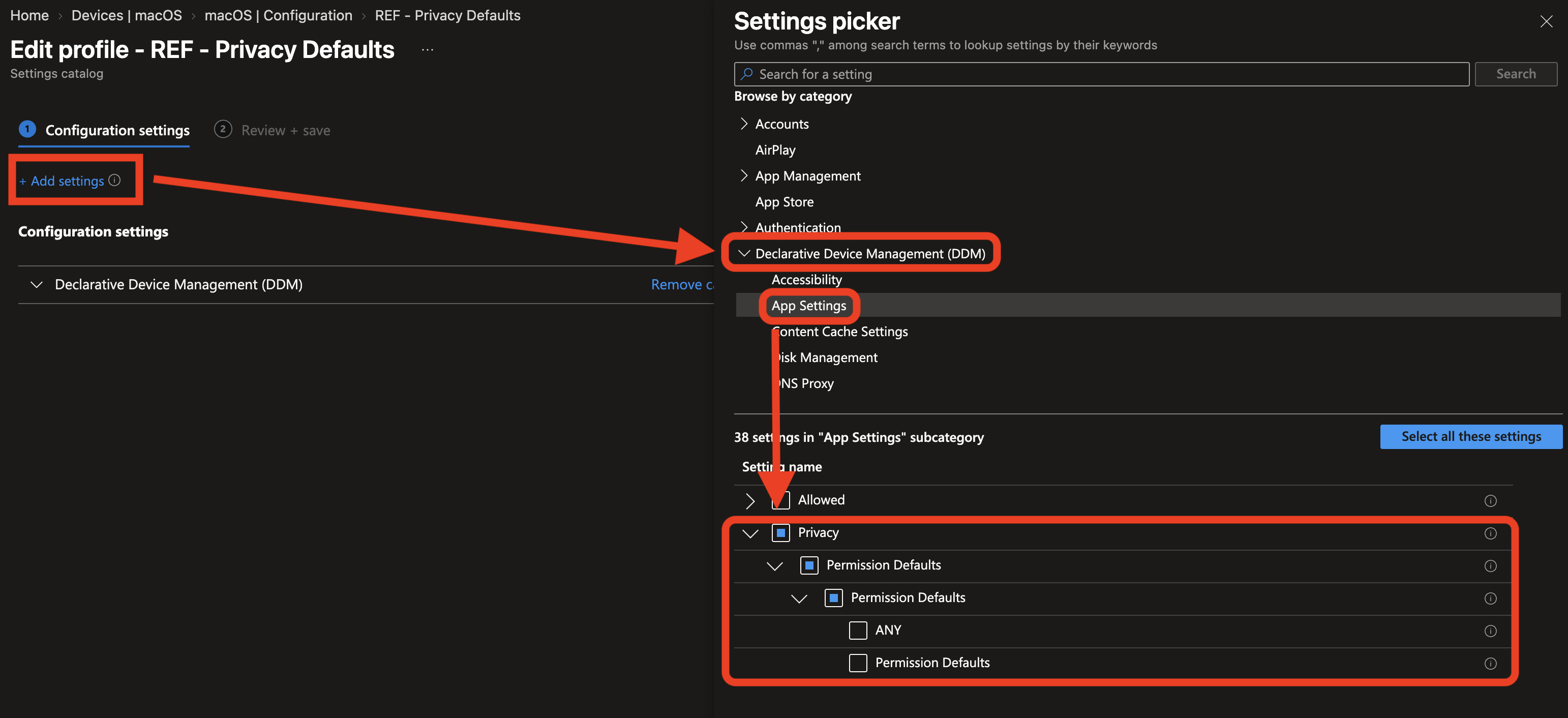
Remember that you have to scroll horizontally to get to the "+ Edit Instance" part to actually make a configuration, this is due to some UX restrictions I suppose in Intune.
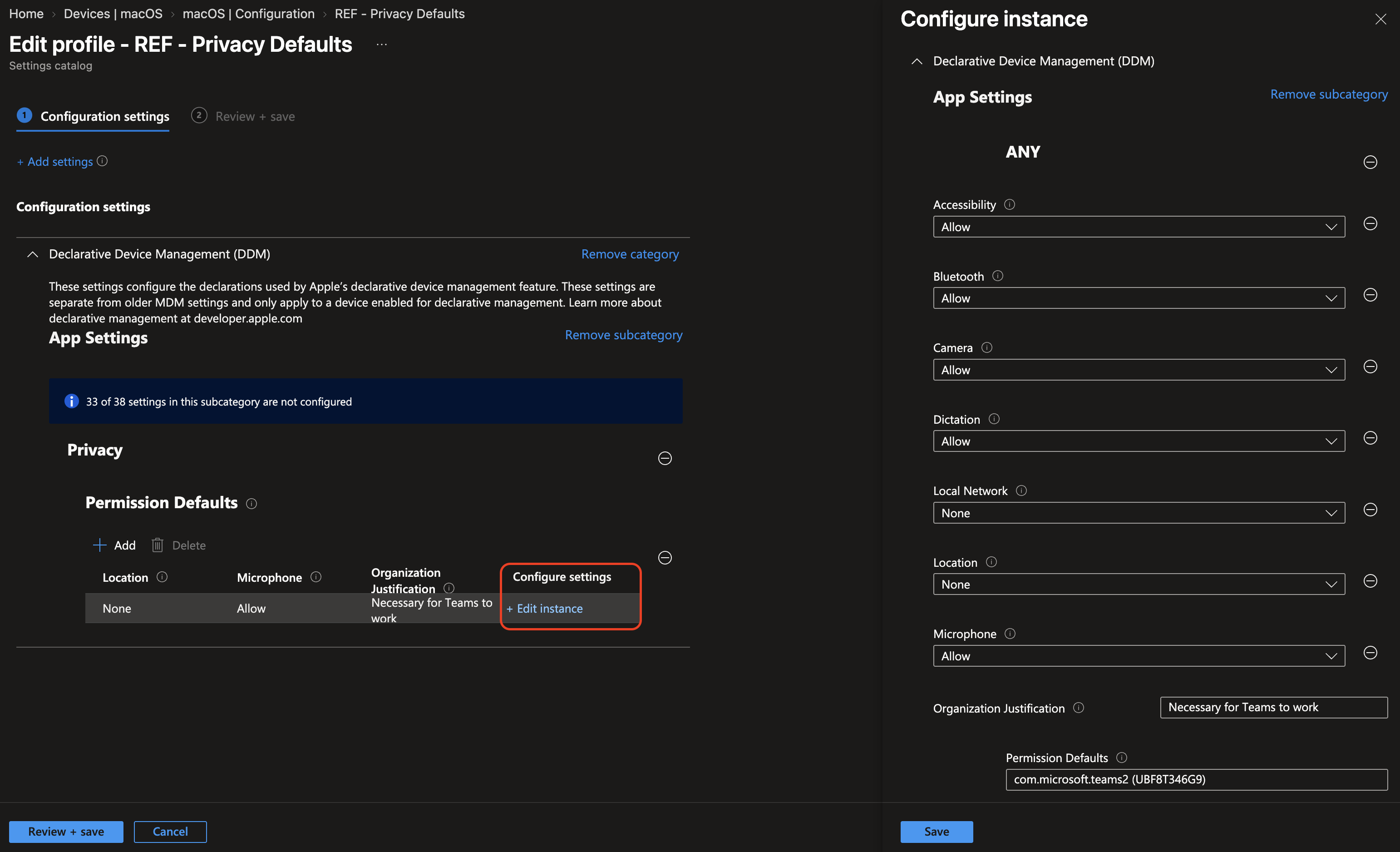
When later deployed to a device and the user open up Teams the first time, they will be presented with a pop-up like the following:
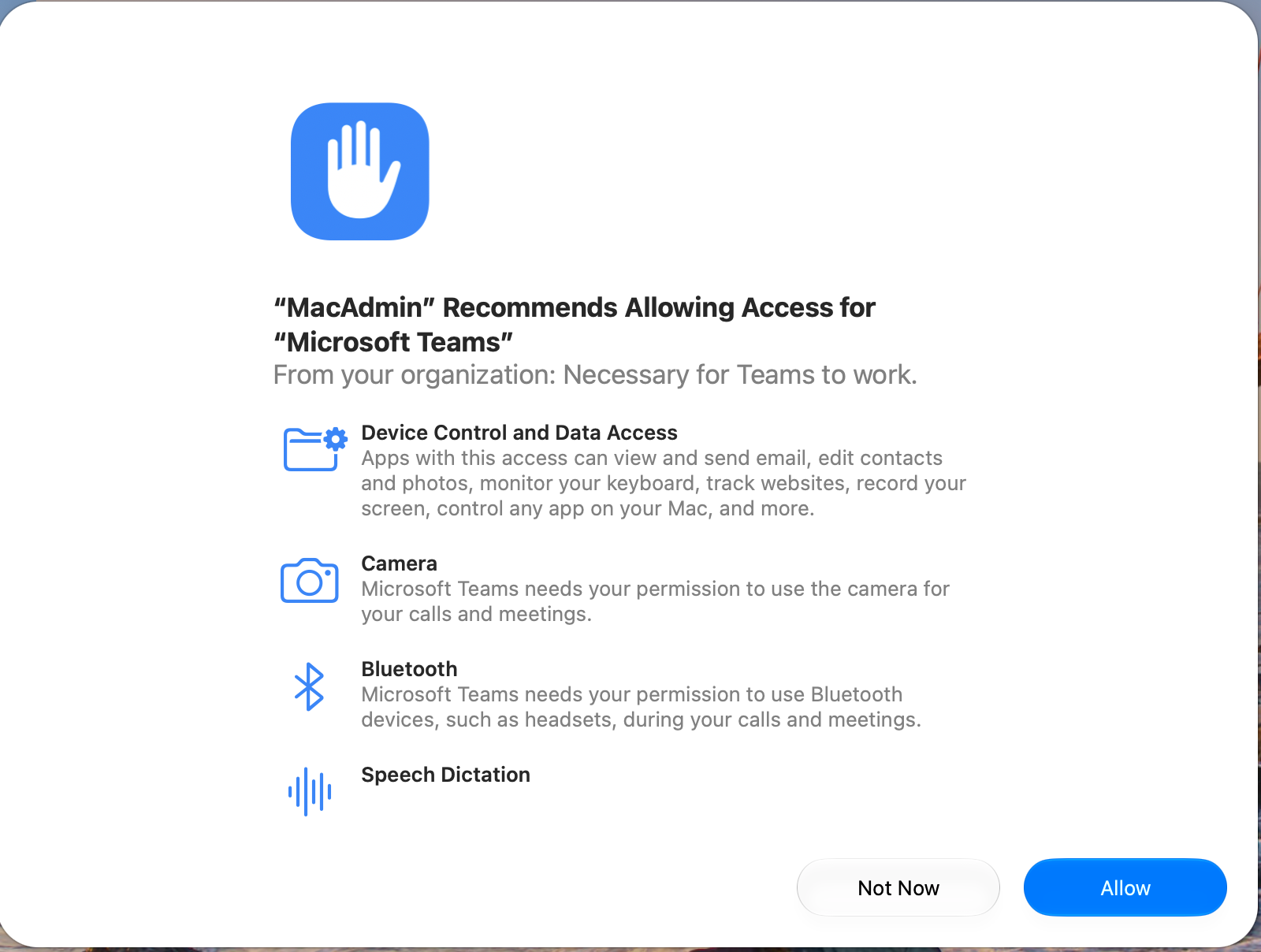 And we can also see that the justification landed after "From your organization:".
Gotchas I hit:
- Channel matters. Privacy defaults are delivered on the user channel. My portal-created policy worked right away: the prompt appeared on first launch. An earlier policy I'd created through Graph (since the catalog setting didn't work as intended) landed on the device channel and showed up on the Mac as an empty App Settings declaration, so there was never a prompt.
- Nothing appears in Profiles. DDM configurations don't show up in System Settings → Profiles. Look under Device Management → your management profile → Device Declarations instead.
- Write the justification for users. It's what they read before tapping Allow.
- One policy per app group. Reports suggest separate declarations for the same app can mean separate prompts.
For reference, the Settings Catalog IDs are app_privacy_permissiondefaults_generickey_*, and the option IDs are _0 for None and _1 for Allow (Location adds WhileUsing and Always). There's also a Safari equivalent, safari_privacy_permissiondefaults, which sets camera and microphone defaults per website.
Binary allow and deny lists
How it works
This is the Allowed half of the same declaration, enforced by the Endpoint Security framework at execution time. There are two lists: AllowedBinaries ("only these may run") and DeniedBinaries ("these may never run"). An app already running when the rule arrives gets terminated, and the old com.apple.applicationaccess.new payload is deprecated in macOS 27.
Rules match on the code signature: CDHash, TeamID, SigningID, PathPrefix and SigningState. Renaming an app doesn't get around them, and they cover command-line tools as well as apps.
The rules that matter
| Situation | Result |
|---|---|
| App on both lists | Deny wins, it won't run |
| Allow list deployed | Only matching binaries run. Binaries on the signed system volume are always allowed. |
| Empty allow list | No restriction, not "block everything" |
AlwaysAllowManagedApps on | Managed apps run without their own entries |
| Allow entry | Needs a CDHash or a TeamID |
| Deny entry | One identifier is enough, e.g. a SigningID or CDHash alone |
| Ad hoc or development-signed binary | Can be denied, but can't be allowed |
| Apple binary with no Team ID | Use *APPLE* as the Team ID |
Testing in Intune
Settings Catalog → macOS → Declarative Device Management → App Settings → Allowed. Unlike privacy defaults, this arrived on the device channel in my tests, which makes sense for a device-wide control.
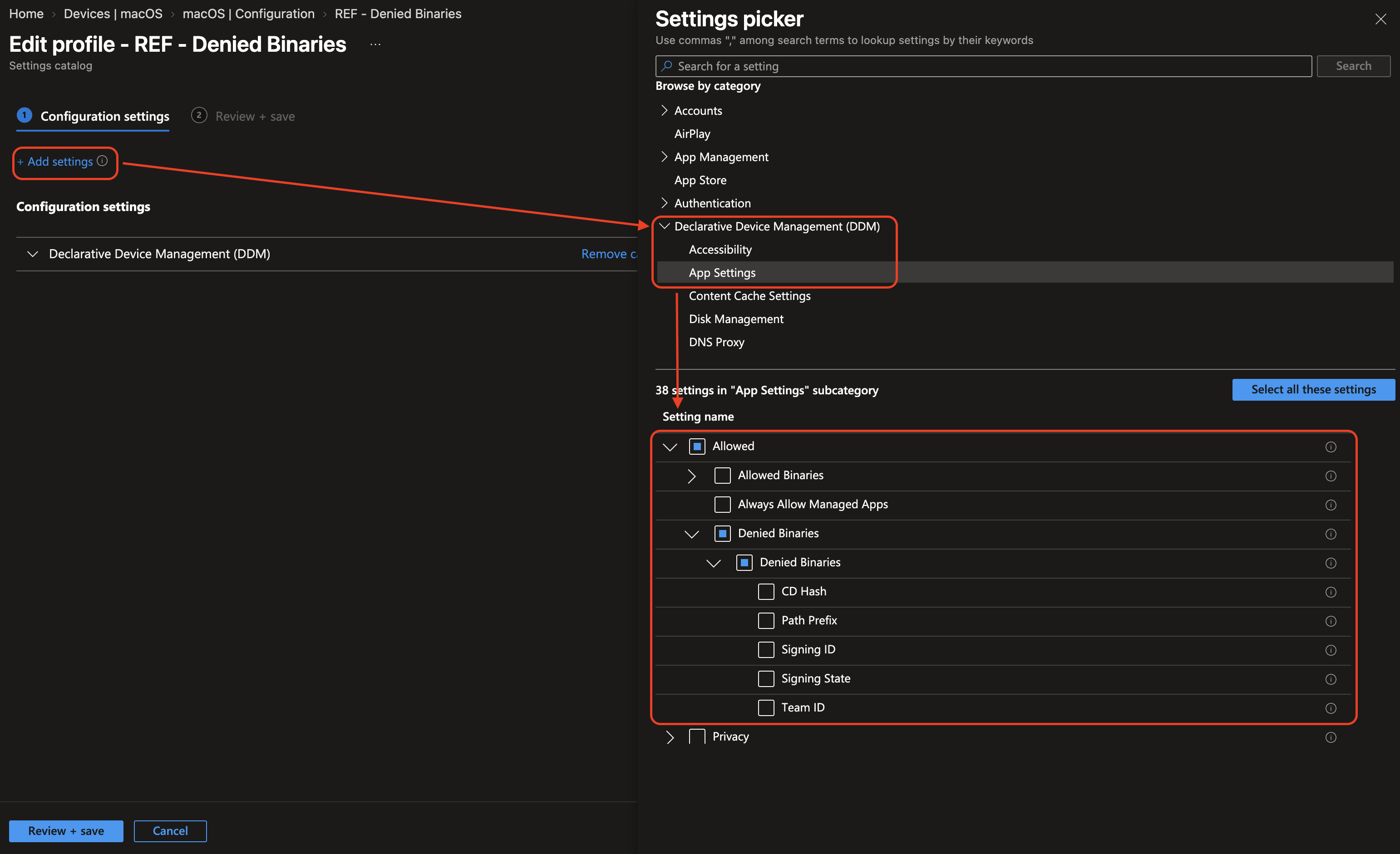
Start with deny rules. I tested two apps that sit at opposite ends of the signing spectrum, which turned out to be the most useful thing I did, because the identifier you can use is decided entirely by how the app is signed.
Case 1: an ad hoc signed app (my own, mSBB)
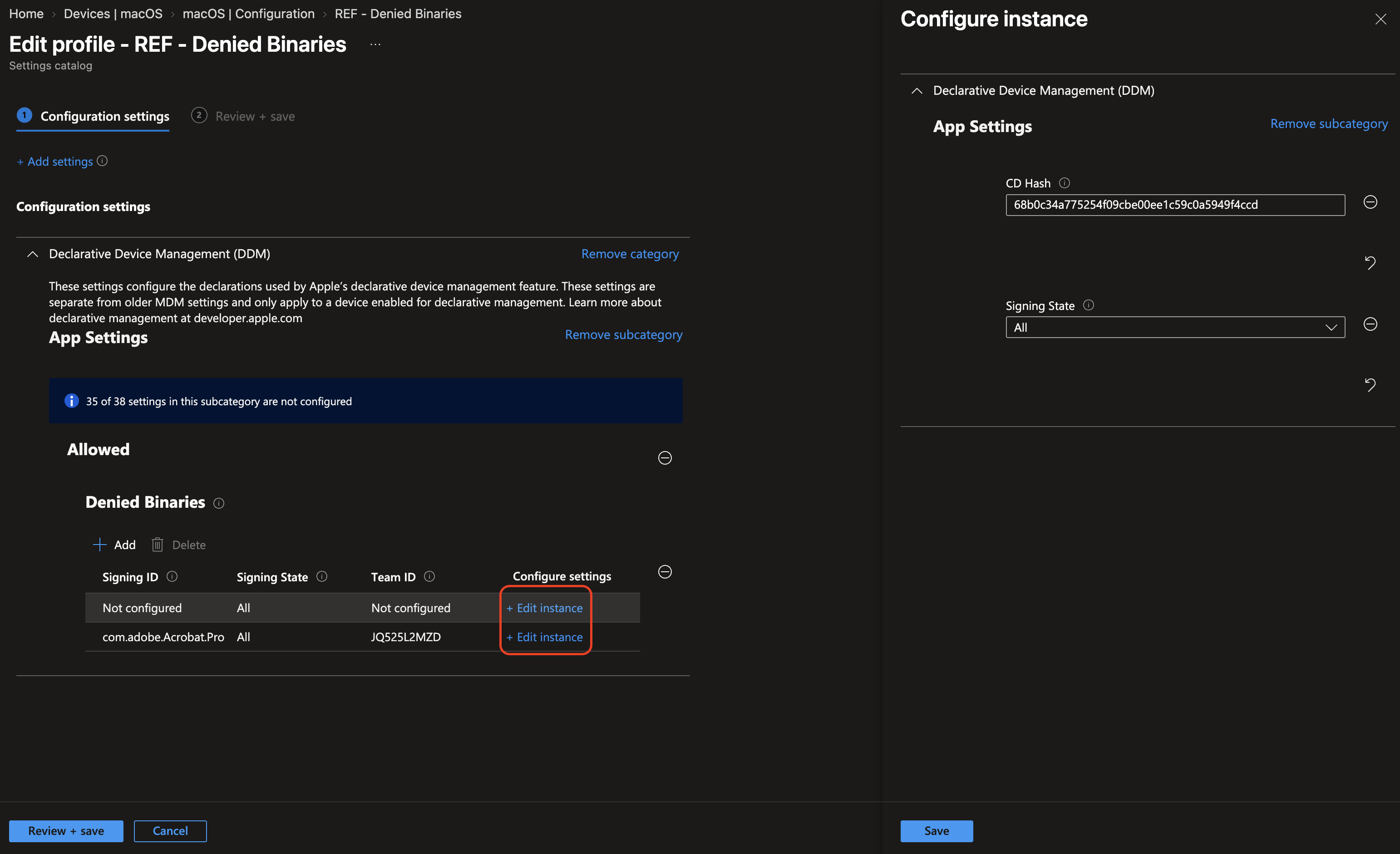
mSBB is built in Xcode without a Developer ID certificate, so it's ad hoc signed: no Team ID, and a Signing ID that's just a string. CDHash is the only thing worth matching on:
codesign -dv --verbose=4 "/Applications/mSBB.app" 2>&1 | awk -F= '/^CDHash=/{print $2, length($2)}'The length check is there for a reason. My first deployment failed because I'd pasted a 39-character hash, and a CDHash is always 40. Once I fixed it, mSBB was blocked immediately with the "your organisation prevented" alert.
The catch is that a CDHash is per build. Rebuild the app and it runs again, because the hash changed. Fine for blocking one known bad version, useless as a lasting rule. Universal binaries also carry one hash per architecture slice, so either add an entry for each or use --arch to get the one that matches your test Mac.
And as we can see in the image below, we're struck with the UX bug yet again to able to configure the instance, so scroll right horizontally and you can click on "+ Edit Instance".
Case 2: a properly signed app (Adobe Acrobat)
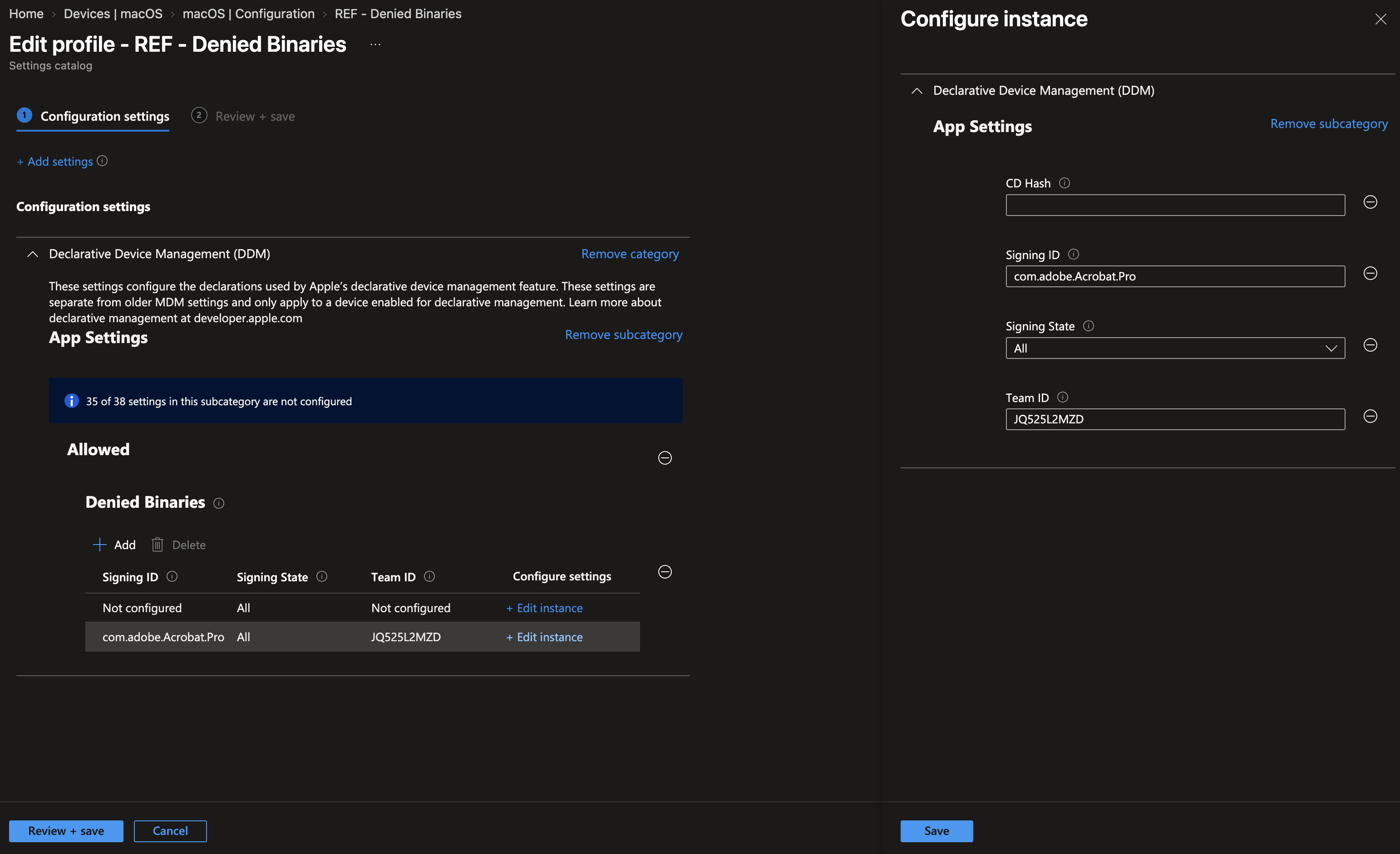
Acrobat is Developer ID signed, so you get a real Team ID and a meaningful Signing ID, and the rule becomes durable:
| Field | Value |
|---|---|
| Signing ID | com.adobe.Acrobat.Pro |
| Team ID | JQ525L2MZD |
| Signing State | All |
That combination blocks Acrobat across every future update, which is what you actually want in production. Team ID alone would work too, but it's a much blunter instrument: it catches Reader, Creative Cloud and everything else Adobe ships.
Two things caught me out getting those values. codesign writes its output to stderr, so piping it into grep without 2>&1 gives you nothing at all and looks like the command failed. And Acrobat doesn't install where you'd guess — there's a folder called Adobe Acrobat DC with the app inside it, so /Applications/Adobe Acrobat DC.app doesn't exist. Let the system find it instead of guessing:
codesign -dv --verbose=4 "/Applications/Adobe Acrobat DC/Adobe Acrobat.app" 2>&1 \
  | grep -E '^(Identifier|TeamIdentifier|CDHash)'
Worth checking after you deploy a rule like this: Acrobat installs an updater, helper binaries and a system extension alongside the main app. A SigningID rule targets only the app, so the helpers keep running unless you list them too. Blocking the app also doesn't change the default PDF handler, so users may just get nothing when they double-click a PDF rather than a clear explanation.
What this means for your own tools
Ad hoc signed binaries can't be allow-listed at all. On a Mac with an allow list, mSBB as it's signed today simply won't run, and neither will ad hoc or development-signed internal tools or a lot of open-source CLIs. If you distribute a Mac admin tool, macOS 27 quietly turns Developer ID signing from "nice to have" into a requirement for any fleet that adopts allow lists.
Only try allow lists on a disposable Mac. A mistake can block Company Portal, the Intune agent and Defender, and cut the Mac off from management. At a minimum, turn on AlwaysAllowManagedApps and add Microsoft's Team ID UBF8T346G9. Don't assume Intune deployed PKG or DMG apps count as "managed". Test it.
Takeaways
- Both features live in
app.settings, but they use different channels: privacy on the user channel, binaries on the device channel. - PPPC isn't gone. Full Disk Access, folders, Apple Events and the rest stay where they are.
- Accessibility is the real loss. Plan for user consent, and check with your agent vendors.
- Start binary control with deny rules, and let the app's signing decide the rule:
TeamIDplusSigningIDfor anything Developer ID signed, CDHash only when there's nothing better. - Sign your internal tools properly before you go anywhere near an allow list.