You've done everything right. Users are standard, LAPS rotates the managed admin password, your EPM software handles elevation, and the compliance policy is green across the board. Then someone holds the power button for ten seconds and walks straight past all of it.
recoveryOS is the back door on every Mac. Recovery Lock is how you lock it, and if you manage Macs in Intune, there's very little reason not to turn it on today.
Why recoveryOS is a problem
Getting into recovery options only asks for the password, or the FileVault key, of a user who can unlock the disk. That's the user's own password. Once inside, they get Terminal, running as root, with their data volume unlocked. I'll get back to the FileVault key in a second.
From there it's a short walk to admin. The local directory lives on that volume, and nothing in recoveryOS stops a user from editing the admin group membership and rebooting as a local admin. No EPM rule, no LAPS rotation, no compliance policy gets a say since none of them run in recoveryOS.
Admin isn't the only thing on the table either. Without Recovery Lock, the same user can for example:
- Lower the security policy in Startup Security Utility (kernel extensions, reduced security)
- Erase the Mac or reinstall macOS on their own schedule
- Disable System Integrity Protection
Recovery Lock puts an MDM-generated password in front of recoveryOS. The user's own password no longer gets them in, only the passcode Intune holds does. The door is shut, and the key is in your tenant.
So let's loop back to the FileVault part, one thing I believe everyone should enable is the " Restrict users from recovering the BitLocker key(s) for their owned devices " option in EntraID. You can find it from Entra ID -> Device -> Manage -> Device Settings, scroll all the way down to Other Settings and set the tick to Yes.
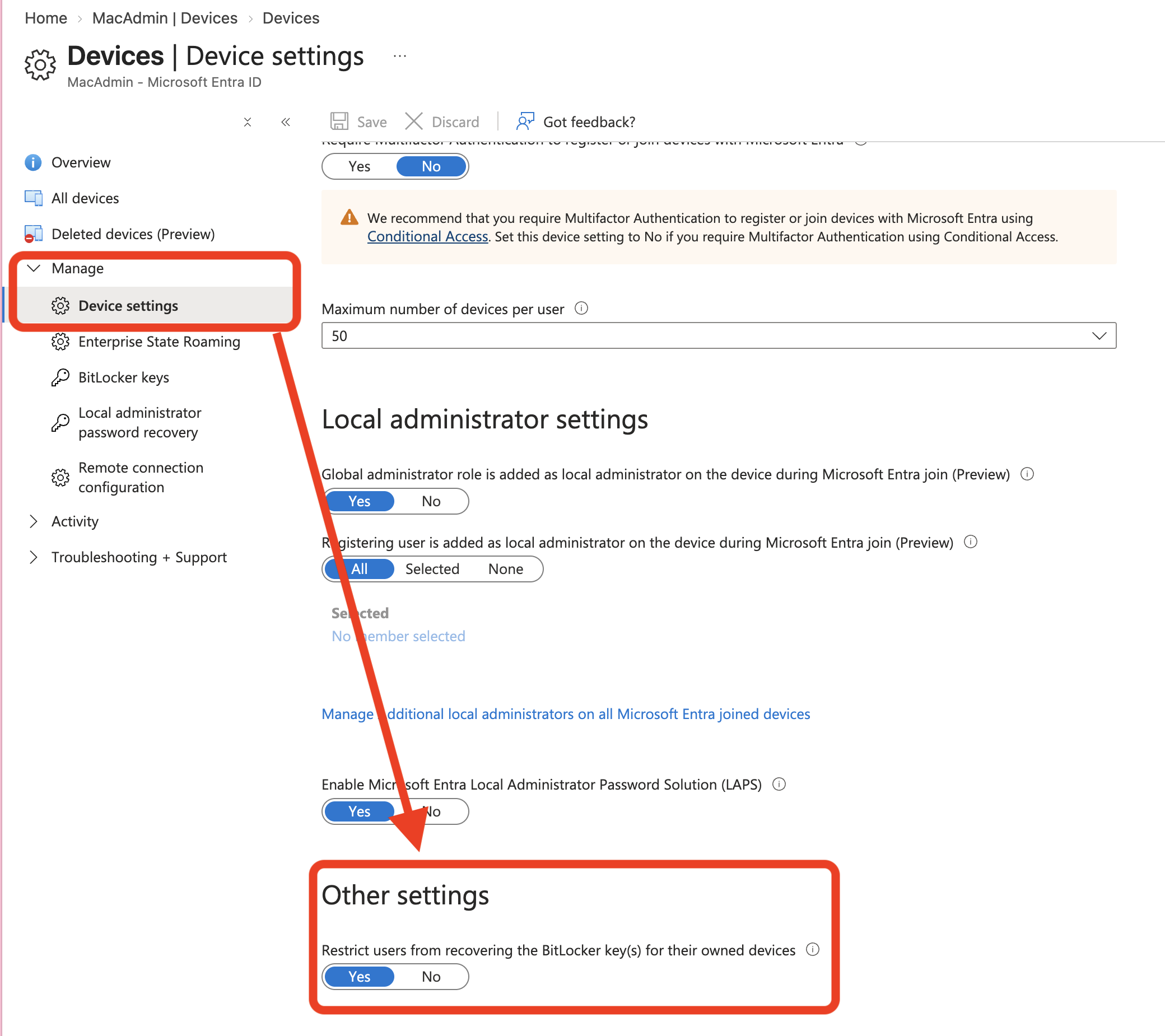
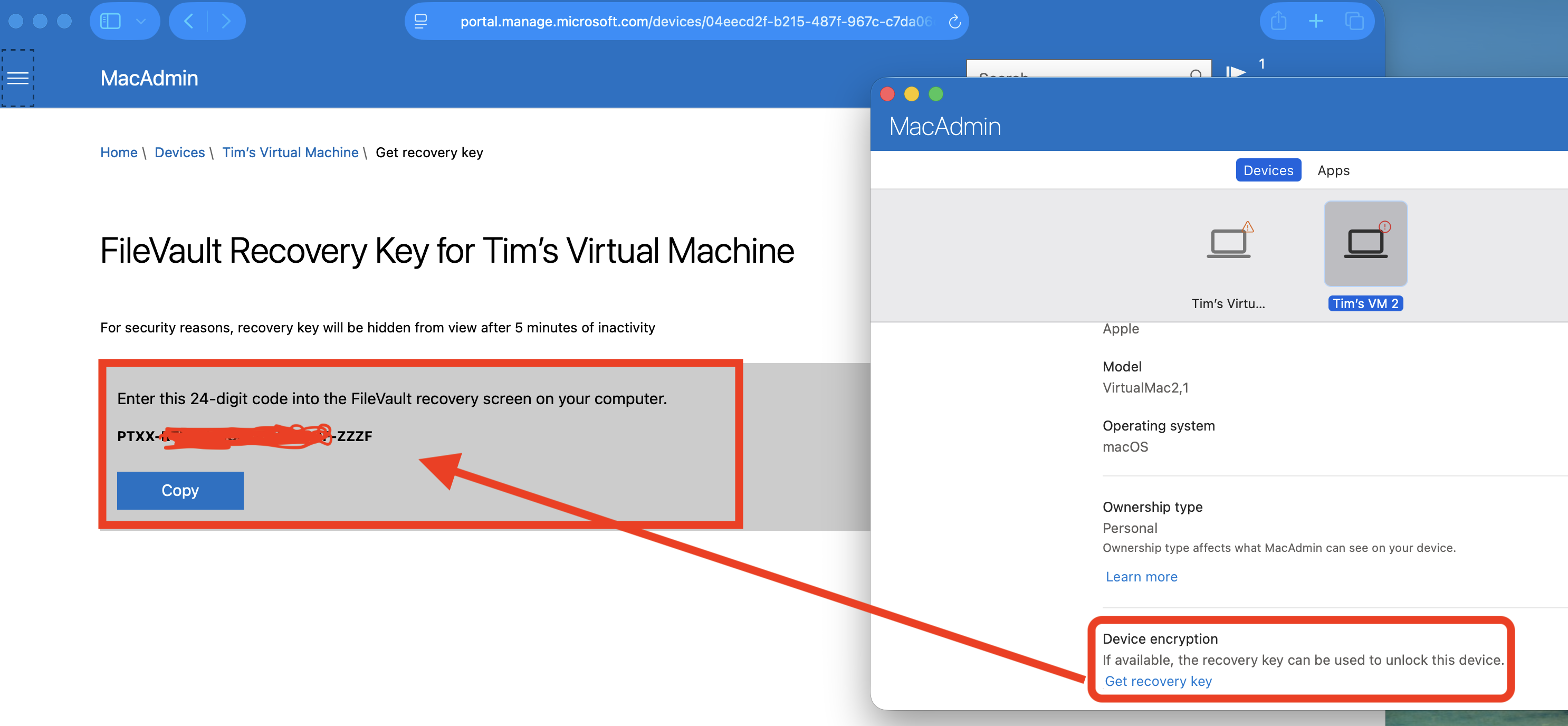
This make it so user's who use Windows can't retrieve their BitLocker key from the web version of Company Portal. You'd think it does the same for the FileVault key, but nope, that's not in the scope, for some strange reason. So Mac users can just grab this key whenever they like from the Company Portal, they simplt click on this link and get redirected to the webpage with the key displayed.
Turning it on in Intune
Recovery Lock needs Apple silicon, macOS 11.5 or later, and a supervised device, so basically a new Mac that's ADE enrolled.
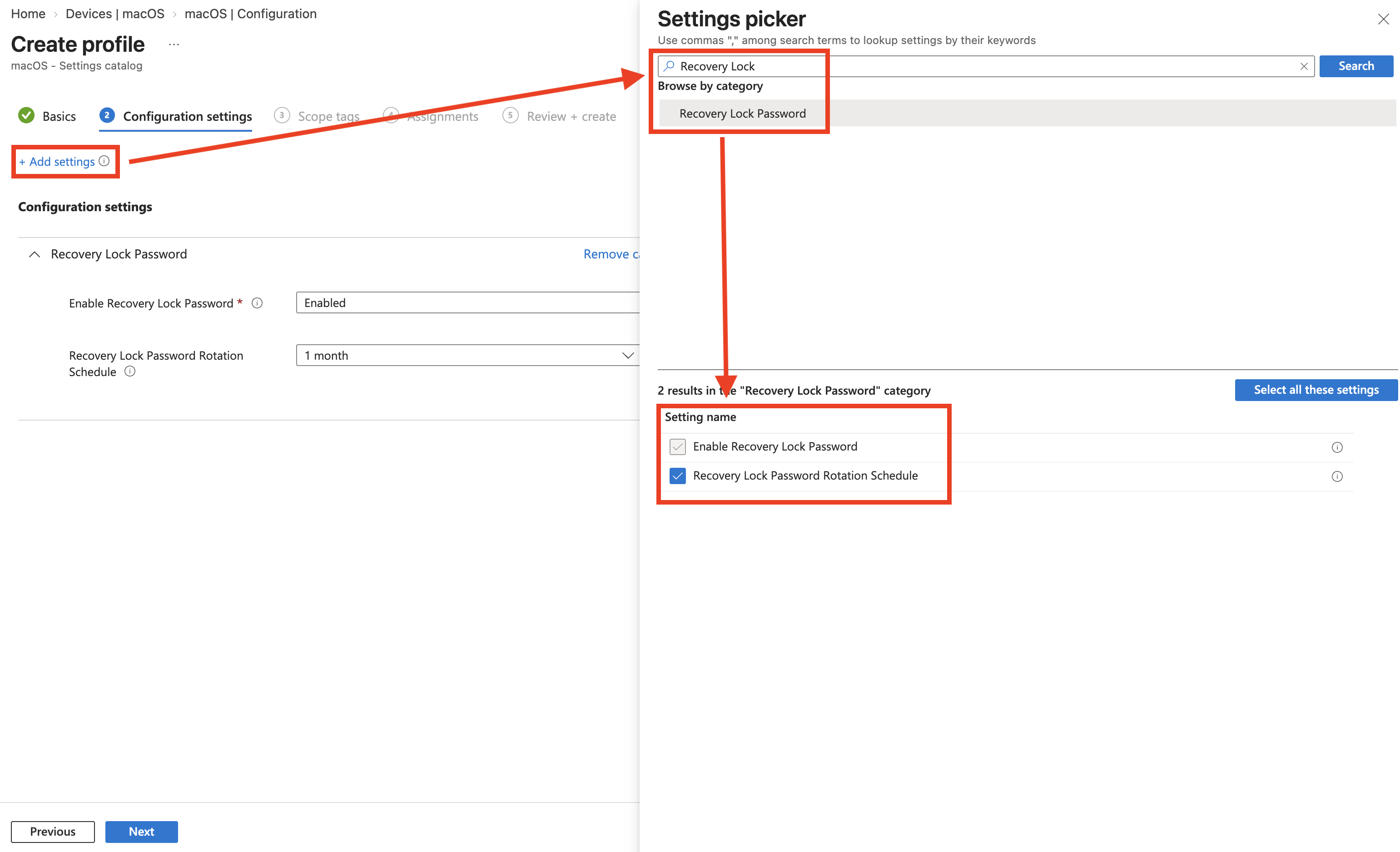
- Go to Devices -> Manage devices -> Configuration -> Create -> New policy.
- Pick macOS and Settings catalog.
- Search for Recovery Lock, select the Recovery Lock Password category and tick both settings.
- Set Enable Recovery Lock Password to Enabled.
- Set Recovery Lock Password Rotation Schedule to somewhere between 1 and 12 months.
- Assign it to a device group and save.
Intune generates the passcode, pushes it to the Mac and keeps it server-side. The Mac never escrows anything back — that's the FileVault model, not this one.
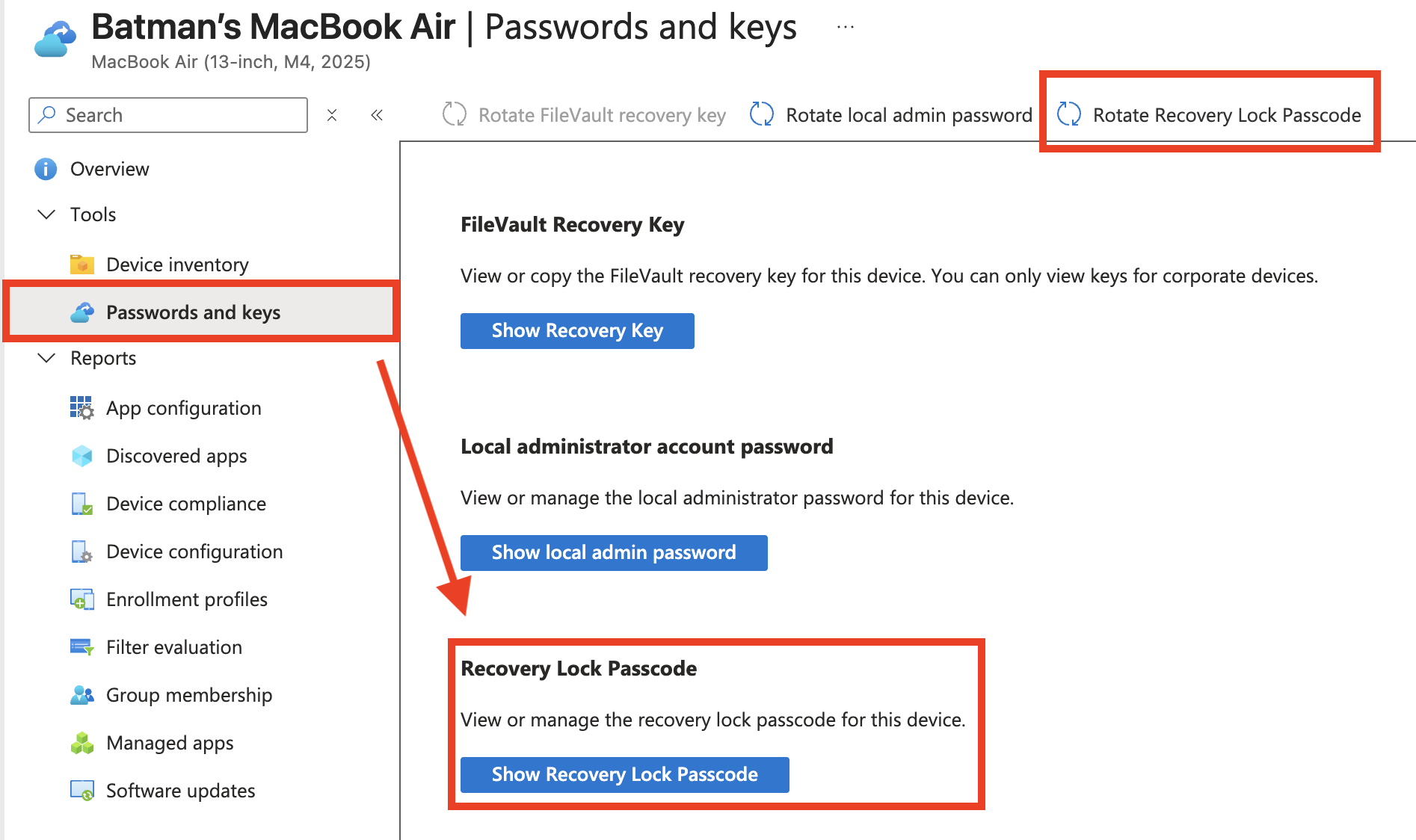
To read the passcode, open the device and go to Passwords and keys > Recovery Lock Password. To change it outside the schedule, use Rotate Recovery Lock Passcode on the device.
And what does it look like if you boot up fater Recovery Lock is applied? Really not that much, a simple text field to type in.

If you want to remove Recovery Lock from a device, simply unassign the profile and sync the device.
And one thing: a rotation only lands at the Mac's next check-in. Until then the old passcode is still the one on the device, even though Intune already shows the new one. Don't rotate a Mac that's offline and locked.
When the Mac is gone from Intune but the wipe never landed
So some customers of mine have Recovery Lock activated, and got into a little hickup. So a short version of what happened: IT Department get a device from a user that's leaving the company, you send a Wipe, the wipe failed and now you are stuck with a device that's in the twilight zone. The possible remains in Intune of the devices Passwords and keys shows you nothing. The Mac, meanwhile, is still sitting there with Recovery Lock on and a user account or admin account you can't reach.
The passcode isn't lost. Intune generated it, so Intune still has it, and Graph will hand it over as long as the device record exists.
1. Find the Intune device ID. If you still have the device URL, it's the GUID after managedDeviceId/. If not, look it up by serial number:
Connect-MgGraph -Scopes "DeviceManagementManagedDevices.Read.All","DeviceManagementManagedDevices.PrivilegedOperations.All"

$serial = "C02XXXXXXXXX"
$dev = Invoke-MgGraphRequest GET "https://graph.microsoft.com/beta/deviceManagement/managedDevices?`$filter=serialNumber eq '$serial'"
$id = $dev.value[0].id
2. Retrieve the passcode. The function is retrieveRecoveryLockPasscode, undocumented, but it's in the public beta $metadata:
$r = Invoke-MgGraphRequest GET "https://graph.microsoft.com/beta/deviceManagement/managedDevices('$id')/retrieveRecoveryLockPasscode"3. Decode it. It comes back base64-encoded:
[Text.Encoding]::UTF8.GetString([Convert]::FromBase64String($r.value))4. Use it. Shut the Mac down, hold the power button until startup options load, pick Options and type the passcode. Check the keyboard layout shown on screen first - _, + and * live in different places depending on keyboard layout, and the field hides what you type. From recoveryOS you get Wi-Fi back and can erase the Mac yourself.
The same trick works for the macOS LAPS password: retrieveMacOSManagedDeviceLocalAdminAccountDetail returns it in plain text, no decoding needed.
Whatever you do, don't run rotateRecoveryLockPasscode while the Mac is offline. Intune will happily show you a new passcode the device has never seen.
Recovery Lock costs you one settings catalog policy and closes the last easy route to admin on a standard user Mac. Turn it on, and keep the retrieval steps handy.
Happy labbin' and take care!